Lab 2
Cisco Command-Line Interface (CLI)
Objective
1) เพื่อเข้าใจการใช้คำสั่ง Cisco Command-Line Interface (CLI) สำหรับการ config บนอุปกรณ์เครือข่ายของ Cisco
2) เพื่อให้รู้จักคำสั่ง CLI ต่าง ๆ ของ Cisco
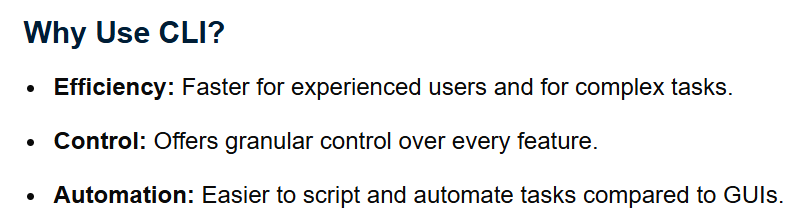
The Cisco Command-Line Interface (CLI) is the primary text-based tool for configuring, monitoring, and managing Cisco network devices like routers and switches, allowing direct command execution for deep control, unlike GUIs. It uses Cisco IOS (Internetwork Operating System) and features various modes (User, Privileged, Global Config) for different tasks, along with helpful shortcuts like Tab completion and the ? for help, making complex network management efficient.
Type configuration mode
The Cisco Command Line Interface (CLI) is a hierarchical structure with several distinct modes, each providing a different set of commands and access levels. The primary modes are
1.User EXEC Mod
2.Privileged EXEC Mode
3.Privileged EXEC Mode
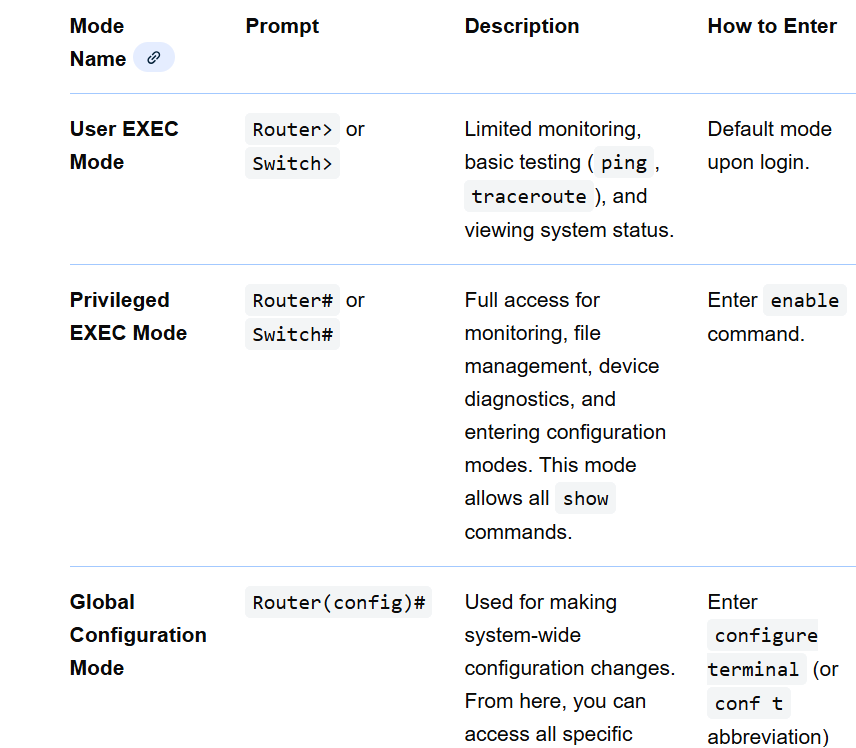
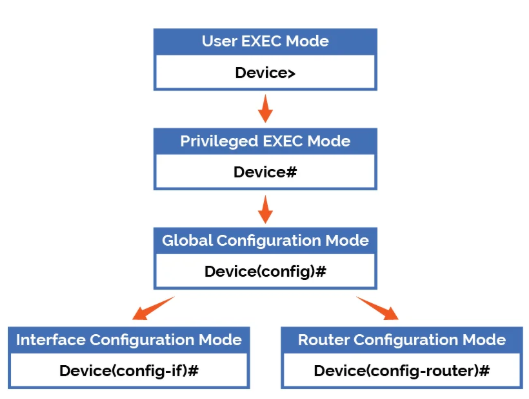
การเข้าใช้งานจะผ่านด่านแต่ละ Mode โดย Mode แรกจะเป็นโหมด User EXEC ซึ่งเป็นโหมดที่ใช้คำสั่งดูข้อมูลพื้นฐานของอุปกรณ์ ยังไม่สามารถคั้งค่าได้ ซึ่งให้สังเกตเครื่องหมายพร๊อม เป็นเครื่องหมาย > หากต้องการเข้าสู่โหมด Privileged EXEC ให้ใช้คำสั่ง enable แล้ว Enter จะเข้าสู่โหมด Privileged EXEC ซึ่งสามารถดูข้อมูลเครือข่ายได้ลึกขึ้น โดยให้สังเกตเครื่องหมายพร๊อมเป็นเครื่องหมาย # และหากต้องการเข้าสู่การคอนฟิกหรือตั้งค่าอุปกรณ์เครือข่าย ต้องเข้าสูโหมด configuration ให้ใช้คำสั่ง configure terminal จะเข้าสู่การตั้งค่าอุปกรณ์เครือข่ายได้
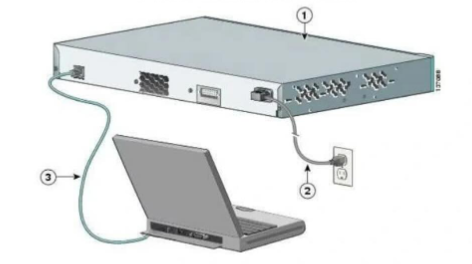
1. Plug the RJ-45 end into the router's console port and the USB end into your PC
Cisco IOS is the internetwork operating system of both the Cisco switches and routers. It has two interfaces command line interface( CLI) and Graphical User Interface( GUI). Since CCNA exam will surely test your knowledge on these interfaces, it is important to get familiar with them. Cisco’s IOS command-line interface (CLI) is a text-based interface integrated with the IOS. When a switch or router boots up, the IOS loads the start up configuration from NVRAM and displays the IOS prompt waiting for commands. We can enter the IOS commands at the IOS prompt. Now we will see various command line modes on Cisco routers and switches using Packet Tracer. Open Packet Tracer and select a Cisco 1941 router as shown below.
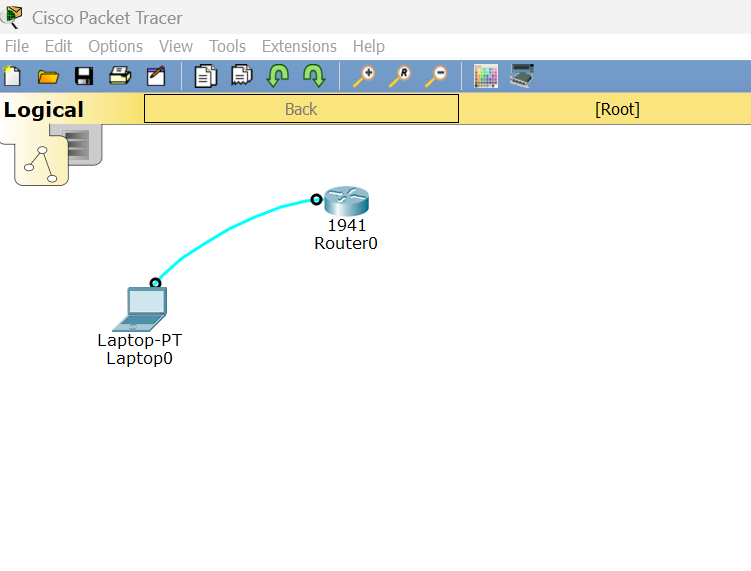
2. Select a Computer from the End Devices and connect Console port on Switch to RS 232 port on PC with a Console wire. What we are simulating here is connecting to the switch from a PC through console.
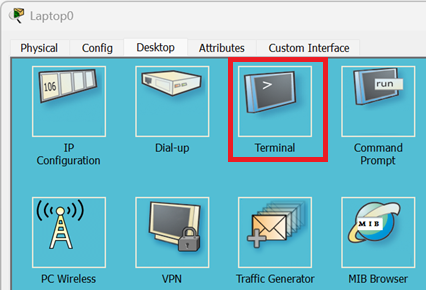
3. Click on the Host device( Computer ). On the window that opens, click on Desktop tab and Click on Terminal.
4. Open a terminal to perform the initial configuration of Cisco router via CLI command
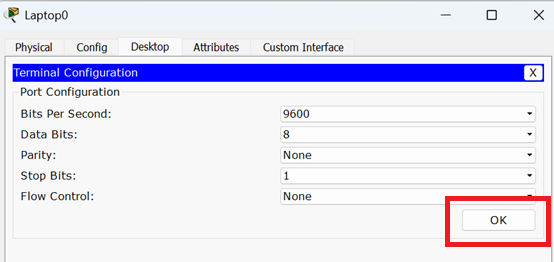
The console opens with the router booting. Router finishes its booting operation and loads into user EXEC mode.
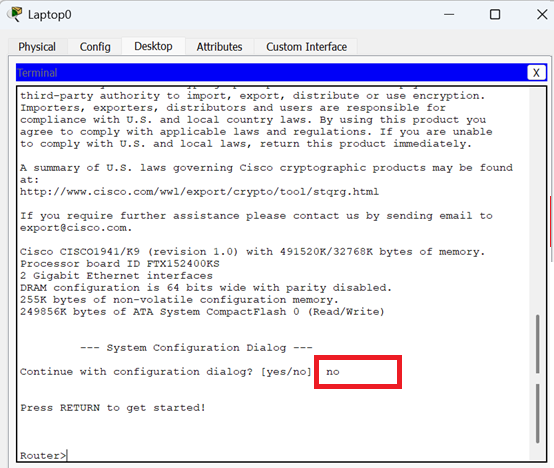
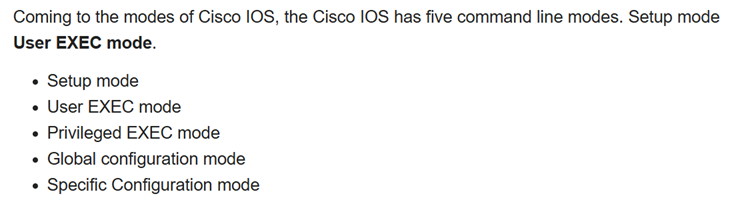
user EXEC mode
The user EXEC mode is the normal operation mode on Cisco switches and routers. The Cisco IOS user EXEC prompt is the switch or router name followed by the ‘greater than’ character >. We can see all the commands available in user EXEC prompt by typing ‘?’
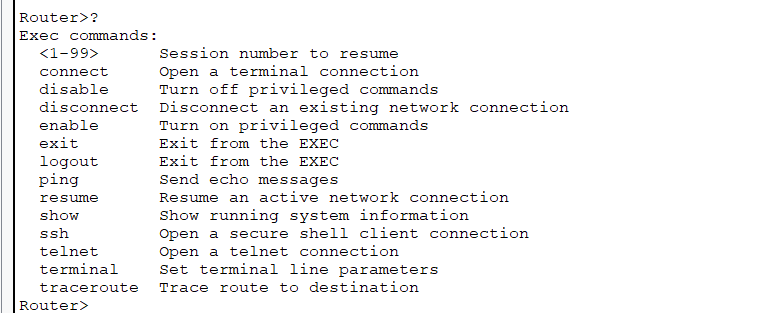
Privileged EXEC mode
Privileged EXEC mode is the advanced operation mode of Cisco IOS. It has been designed to restrict access to IOS commands that can have adverse effects on the Cisco device and its configuration. To enter privileged EXEC mode type “enable” or “en” .Privileged EXEC prompt is comprised of the switch or router name followed by the # character. To exit the privileged EXEC prompt type “disable”.
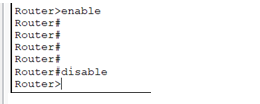
To see the commands available in privileged EXEC prompt, type?.
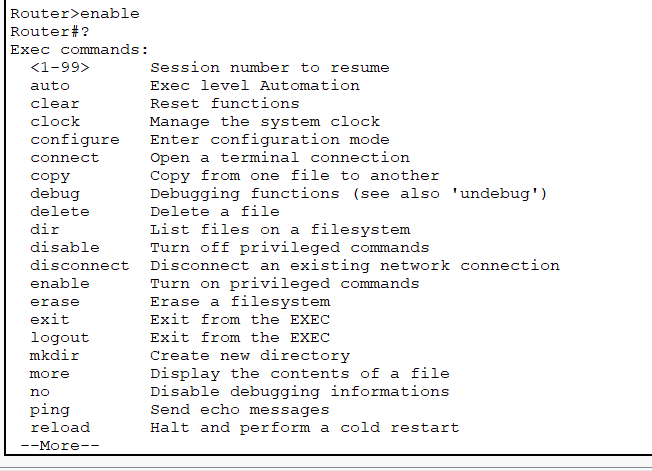
Global Configuration mode
The global configuration mode is comprised of commands pertaining to the entire Cisco device. In other words, if we need to execute commands to modify the behavior of either the whole switch or the whole router we need to set the IOS in global configuration mode. Global configuration mode can only be enabled from privileged EXEC mode by typing “config t” or “conf t” commands. The prompt in this mode is comprised of the device name followed by “( config)#”.
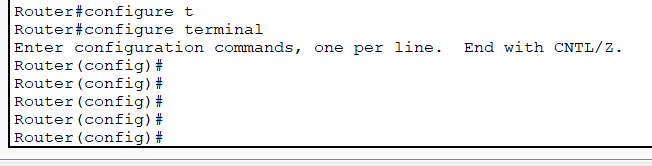
See the commands available in this mode by typing ‘?’. If we need to execute a command not available in the global configuration mode we should prefix the command by “do”.
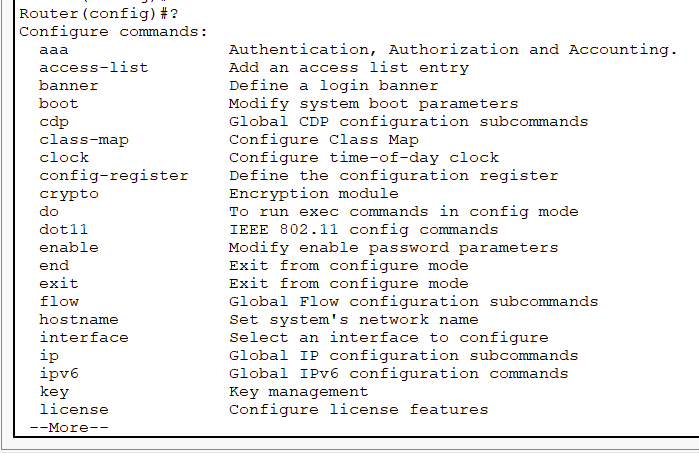
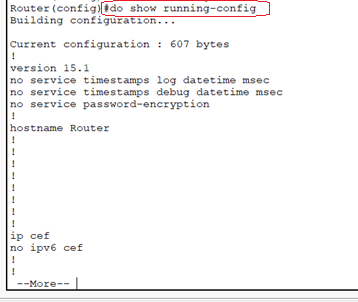
Specific configuration mode
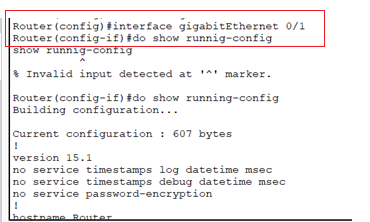
The specific configuration mode is used for commands that affect the configuration of either just one part or range of components of the Cisco device. Suppose we want to work on a few interfaces (or ports) on our switch or router we need to enable specific configuration mode. We can enable specific configuration mode only from the global configuration mode by selecting the components we want to work with. The prompt in this mode is comprised of the router or switch host name followed by “( config-< component >)#”. Let’s select interface fastethernet 0/ 1 by typing “interface fastethernet 0/ 1” or “int f0/ 1”
Exit command
หากต้องการ ออกจากการ config ขณะทีอยู่ในโหมด configure ให้ใช้คำสั่ง exit จะเป็นการถอยออกกลับไปยังโหมด Privileged หรือหาก exit ต่อเนื่อง 2 ครั้งจะออกไปสู่โหมด user EXEC
https://itexamanswers.net/chapter-3-command-line-modes-cisco-routers-switches.html https://www.geeksforgeeks.org/computer-networks/computer-network-tutorials/assignment
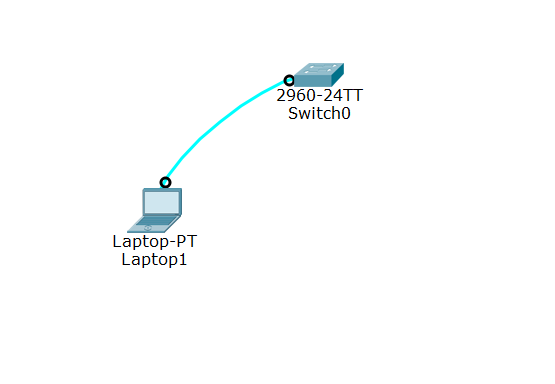
ให้ทดลองนำ อุปกรณ์ Switch 2960 มาทำการ config ผ่านโปรแกรม Teminal ของโน๊ตบุ๊ค ด้วยการจำลองบนโปรแกรม Packet Tracer แล้วฝึกใช้คำสั่ง CLI เพื่อเข้าสู่โหมด Privileged และโหมด Config แล้วฝึกใช้คำสั่ง exit กับอุปกรณ์ switch